Android and iOS development with Delphi
- 1. Introduction
- 2. Movie
- 3. Features
- 4. Usage
- 5. Deploying iOS applications
- 6. Build and deploy from command-line or Castle Game Engine editor (Android only for now)
- 7. What are the minimal Delphi versions supported, and why?
- 8. Android and iOS services, managed by our build tool, are not available in Delphi
- 9. Troubleshooting
- 9.1. Android project fails to be deployed when building with different Delphi version
- 9.2. Project fails to be deployed with errors about missing splash screen
- 9.3. Getting "Project … raised exception class 10" dialogs when running in Delphi debugger
- 9.4. Problems building from Delphi 13 for macOS/Aarch64 (Silicon)
- 9.5. iOS deploy errors "E0264 Unable to execute '"/usr/bin/plutil" -convert binary1 "…./Info.plist"' (Error 1)"
- 9.6. Android building error "Could not create the Java Virtual Machine" (older Delphi versions)
1. Introduction
You can use Delphi to build and run applications made with Castle Game Engine for Android and iOS.
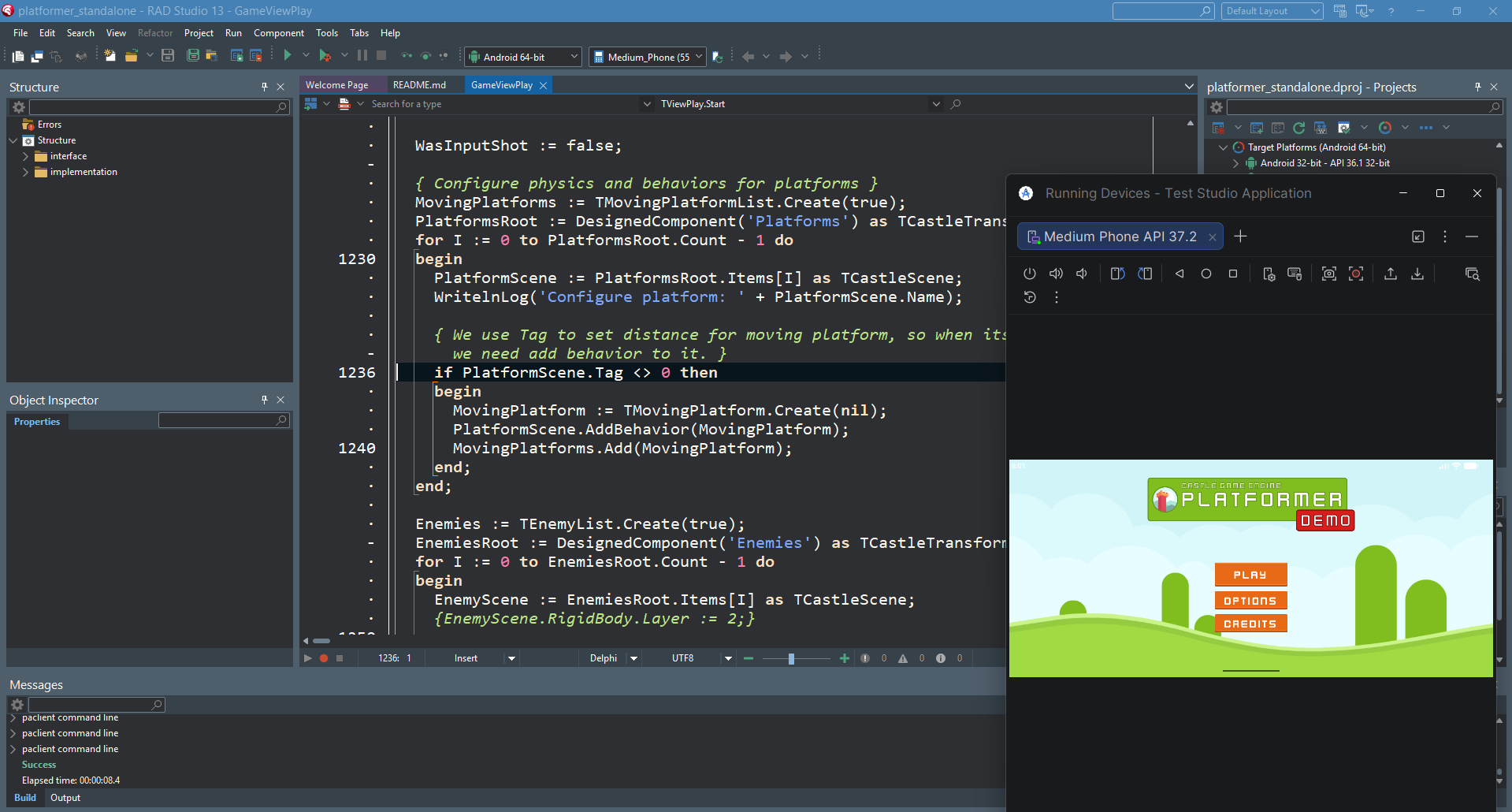
Just try it!
-
Open one of the engine examples (like examples/2d_games/platformer or examples/3d_games/walking_adventure). Our examples are regular Delphi projects that you can open in any supported Delphi version.
-
Add to the project a mobile target like "Android 64-bit" or "iOS Device 64-bit" (right click on the "Target Platform" and do "Add Platform").
-
Build and run it from Delphi for Android or iOS, just like any other FireMonkey application.
In case of trouble, consult this page for help — we gathered a lot of information about how everything works, and how to solve problems. But in a typical case, things should just work.
|
Note
|
While you can browse the engine examples on GitHub, it’s easiest to open them by just downloading and installing the Castle Game Engine on your disk, it will include all example code and data. |
2. Movie
Here’s a movie presentation of how it all works.
The first part of the movie shows the basic usage of Castle Game Engine and deploying sample applications for Android. The second half focuses on integrating with FireMonkey components for some cool additional features (like camera, location, accelerometer, gyroscope services) — you can try them yourself, these examples are in examples/delphi subdirectory.
|
Note
|
In the movie below, I click "Generate Artwork" to generate dummy splash screen and other artwork for sample projects. This is not necessary anymore. |
3. Features
You can use Delphi to run Castle Game Engine applications on Android and iOS.
-
Underneath, we rely on Delphi’s support for Android and iOS applications using FireMonkey.
You need to have appropriate platform support included in your Delphi version.
You configure your Delphi as usual for developing for Android and iOS with FireMonkey. Use the Delphi "SDK Manager" to add the proper platforms (like "Android 64-bit" or "iOS Device 64-bit"). For iOS, configure the connection to macOS in the "Connection Profiles". More on this below.
-
To display using Castle Game Engine, you can use either:
-
TCastleWindow. Our recommended solution if you want to "just make a game". The game rendering is your whole application. -
TCastleControl. In this case, Castle Game Engine is just a rectangle on a regular FMX form you create and design. This is nice to add engine rendering to an existing application, e.g. to visualize something your application manages.
In both cases, for Delphi, your application is just a regular FireMonkey (FMX) application.
-
-
Rendering obviously works. Underneath, our OpenGLES rendering shares the context with FMX.
-
Your application can use regular data (read-only game’s data, without the need for Delphi’s
StartUpCopy) and config (writeable files), using the engine’s URLs likecastle-data:/my_png.png,castle-config:/user_settings.conf. All our URLs work as expected. -
Asynchronous network downloads using
TCastleDownloadwork. -
Warning
TODO: For now, audio on mobile is using a simple audio backend based on TMediaPlayerunderneath. It practically works well enough for 2D games, but is poor for 3D games. We plan to enable OpenAL and FMOD, full-featured sound backends with 3D sound, for Delphi mobile soon. Talk to us to push us to make it faster:) -
Multi-touch works. Under the hood, we convert FMX
OnTouchevent information into what our engine expects (which is quite similar, we also have persistent finger ids, see ourPress/Release/Motionevents).NoteIn case of TCastleControl, you need to explicitly callTCastleControl.MultiTouchOnFormto enable multi-touch. It’s just one trivial method to call when your form is created or shown. -
TCastleContainer.SafeBorderis valid, we get the value from FMX. This is useful to render content avoiding system UI elements or the "notch" on mobile devices. -
We can integrate with all FMX services and it works as expected.
-
Camera from FMX (
TCameraComponent) is useful, you can use camera image as a texture, in both "regular" FMX form withTCastleControl, and inTCastleWindow. See examples/delphi/fmx_camera (TCastleControlon FMX form), examples/delphi/window_camera (TCastleWindow). -
Location services (examples/delphi/fmx_location)
-
Accelerometer (get 3D acceleration vector from device) (examples/delphi/window_accelerometer)
-
Gyroscope (get rotation/tilt from device) (examples/delphi/window_gyroscope)
-
4. Usage
4.1. Connecting Delphi to a mobile device
|
Note
|
If you have already used Delphi (and FireMonkey) with mobile platforms, then this section will likely not teach you anything new. There’s nothing specific to Castle Game Engine below. Just set up a connection to PAServer (on macOS, for iOS), set up SDKs, and you’re good to go. |
4.1.1. Android
Connecting to Android:
-
Set up the Android SDK in the "Options → Deployment → SDK Manager". You may want both Android SDKs: one for 32-bit (Arm 32-bit) and one for 64-bit (that’s Aarch64), if you want to cover all options.
NoteMake sure that paths configured there to Java JDK are valid. If needed, install Java JDK and point Delphi’s configuration (inside Android SDKs in "Options → Deployment → SDK Manager") to the proper Java JDK paths. But Delphi can also ship with recommended Java version. -
To deploy your application to a real Android device, you can connect your phone through USB to the same machine where Delphi is running. Using Android Studio you can also set up wireless connection.
4.1.2. iOS
Connecting to iOS:
-
You need a working connection to a macOS machine to build for iOS. Follow the Delphi for macOS deployment guide.
-
Set up the iOS SDK in the "Options → Deployment → SDK Manager". It will also happen automatically if you just try to build for "iOS Device 64-bit".
4.2. Add "Android 64-bit", "iOS Device 64-bit" platforms to the project
If you open in Delphi a project generated by the Castle Game Engine tools, you need to add the appropriate mobile platform(s). In Delphi IDE, right-click on "Target Platforms" and choose "Add Platform…".
-
For Android, you want at least "Android 64-bit" that includes almost all modern Android devices. Optionally, also add "Android 32-bit".
-
For iOS, you want at least "iOS Device 64-bit". Optionally, also add "iOS Simulator …" if you plan to use the simulator.
Reason why this is required: Delphi project files (DPROJ) created by Castle Game Engine tools (like "New Project" in our editor), and examples distributed with our engine, do not include the Delphi mobile platforms by default. Maintaining DPROJ files that work with all supported Delphi versions on mobile does not seem possible, as there are a number of details (like Java libraries used, and version info) that need to be present in DPROJ and are Delphi-version-specific.
4.3. Application data (e.g. game models, textures)
Like with every platform and every compiler we support, just place your data files inside the data subdirectory of your project. Access it using the special castle-data:/ URLs.
Moreover, in case of all Delphi non-Windows platforms, it’s important to keep your project files auto-generated and up to date. That’s because the DPROJ of your project lists what files to deploy (i.e. put in APK or IPA file).
When you add / remove data files, you need to regenerate the DPROJ file by:
-
"Code → Regenerate Project" menu item in the editor.
-
Or from the command-line, using our build tool, execute
castle-engine generate-program.
|
Warning
|
TODO: Unfortunately, regenerating the project (after adding or removing data files) means that you will need to re-add the mobile platforms again (per section above). We know this is a problem. We plan to switch to packing data into a single zip for mobile platforms; then you will practically not need to regenerate DPROJ very often. As usual, we encourage to talk to us to push us to implement this faster:) |
4.4. We don’t recommend using System.StartUpCopy
Using System.StartUpCopy makes a copy of the assets on the device. In case of Android, assets are copied from a special location (not accessible as regular files, only accessible using special Android API for assets) to a filesystem on Android. In case of iOS, this is a simple copy (filesystem→filesystem).
Doing this copy is:
-
Unnecessary. Castle Game Engine reads data straight from the assets of the installed application (using Android assets API, for Android), and this follows the recommendations for Android apps. As a developer, you use special URLs to refer to the application data.
-
Doing such copy is also wasting initialization time and disk space. This is important since game data can be large.
-
And it has a serious issue: it doesn’t update a copy if it already exists. So if a new version of your application ships a modified data file → it will not be updated. We guess this was done for performance reasons (otherwise every application launch is slow), but it can result in obvious bugs. See
System.StartUpCopysources to confirm this.
We recommend you simply do not use System.StartUpCopy unit in your Delphi applications.
4.5. Capturing logs on Android
Delphi applications on Android send logs using the standard Android facility. Our WritelnLog and various other ways to send logs from Delphi all result in this.
However, the Delphi IDE doesn’t display these logs automatically anywhere.
To see them, you have several options:
-
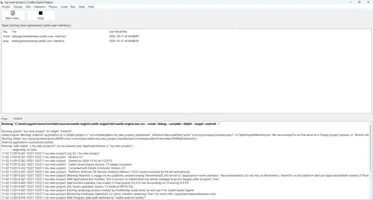
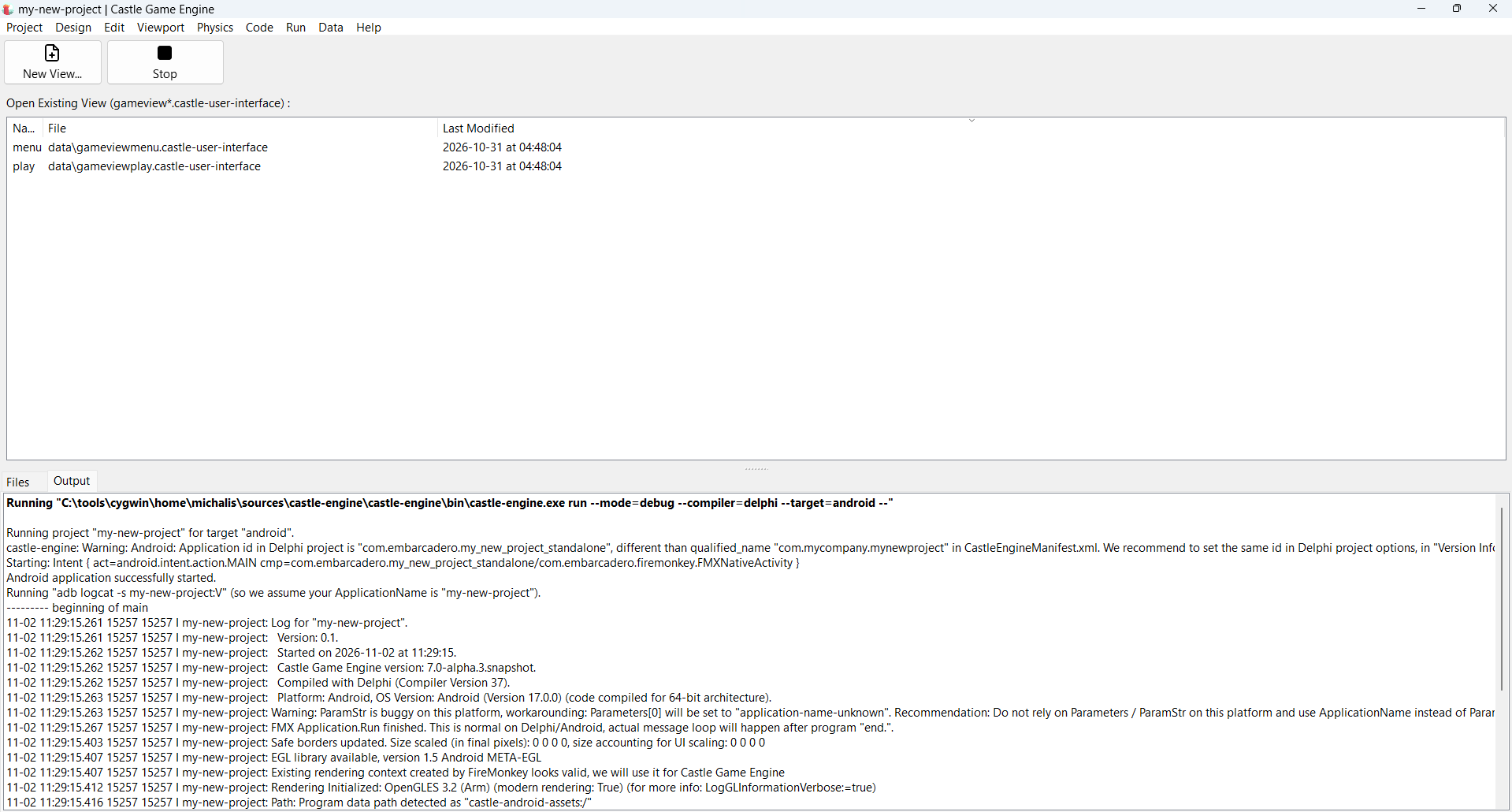
Run the Android application from our Castle Game Engine editor.
To do this, open your project in our editor, switch platform to Android using the menu "Run → Platform (To Compile and Run) → Android", and then run using the "Run → Run (Without Compiling)" menu item.
Make sure that the mode (debug / release) corresponds to how you build your application.
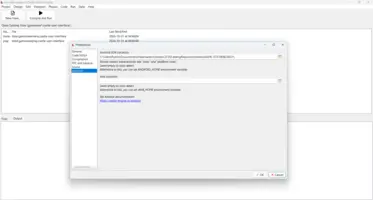
Make sure that our editor can find the Android
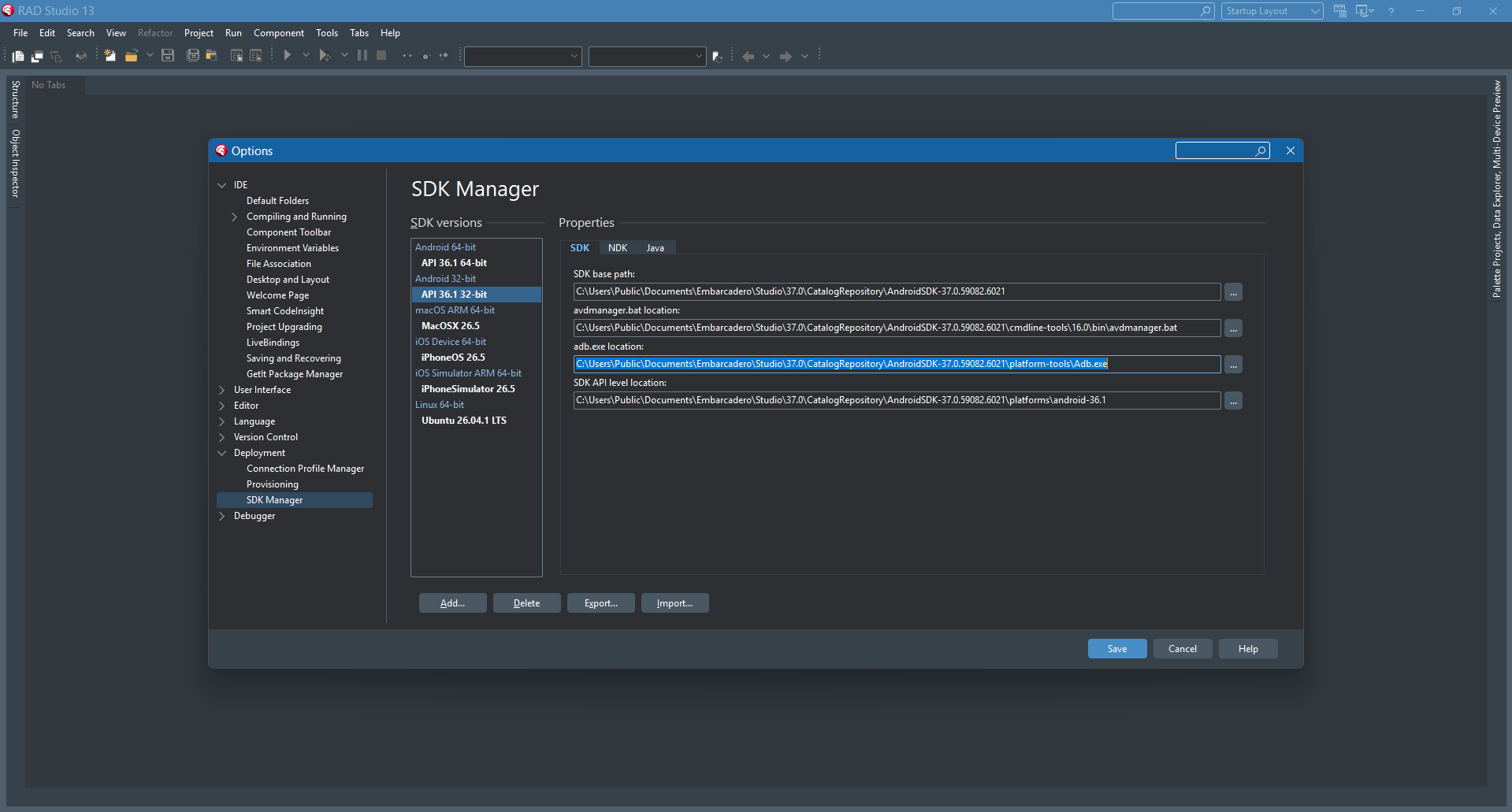
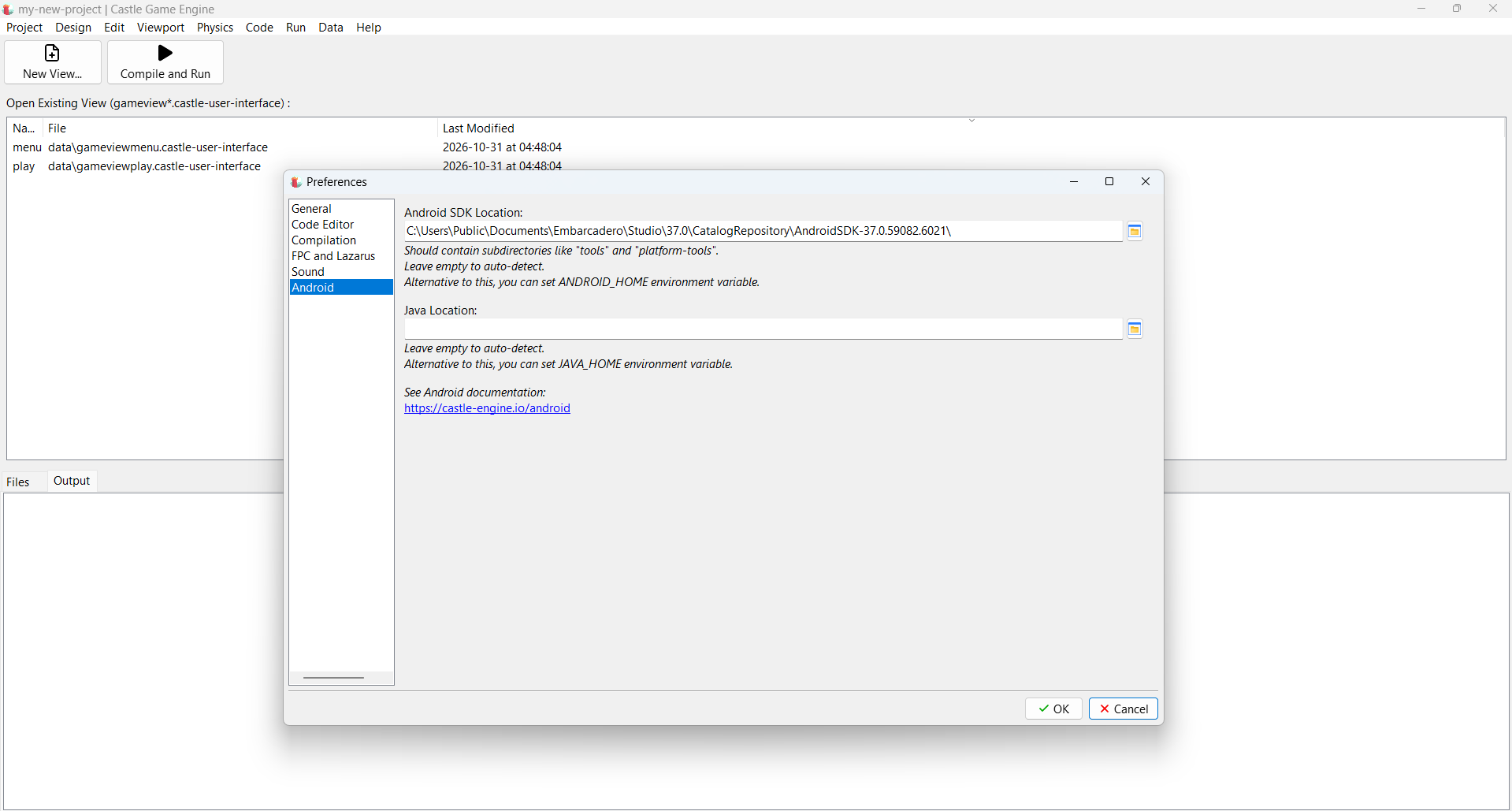
adbtool. To use the sameadbversion as Delphi, consult the Delphi Android settings: enter "Tools → Options → Deployment → SDK Manager → Android 64-bit" and look at the "adb.exe location". You want to know the directory containing theplatform-tools\adb.exe, which will look likeC:\Users\Public\Documents\Embarcadero\Studio\37.0\CatalogRepository\AndroidSDK-37.0.59082.6021\To make this known to our editor, configure in Castle Game Engine the "Preferences → Android → Android SDK Location" setting. Alternatively, set the environment variable
ANDROID_HOMEto point to it.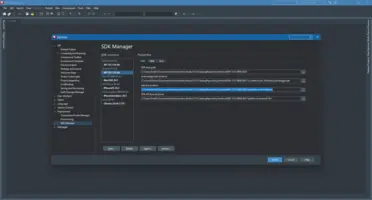
-
Run the Android application using our Castle Game Engine command-line build tool.
To do this, open a terminal, navigate to your project directory, and run
castle-engine run --target=android --compiler=delphi --mode=debugAs above: make sure that
--modecorresponds to how you build your application.And make sure that our build tool can find the Android
adbtool, by setting theANDROID_HOMEenvironment variable to the Android SDK location. If you’re not sure how to modify environment variables on Windows, you can follow instructions here. -
You can install Android Studio and use logcat window.
NoteInstalling Android Studio just to see the logs can be seen as overkill :) But we found it has enough nice features (even if you’re not coding in Java!) that it’s worth installing it anyway (e.g. connecting and mirroring devices over wi-fi). -
You can run command-line
adbmanually, like:-
./adb logcat | grep 'com.embarcadero.Project1\|FMX: Project1' -
./adb logcat --pid=$(./adb shell pidof -s com.embarcadero.Project1)
If you want to automate this for your shell script, you can use
castle-engine output qualified-nameto get the qualified name of your Android application from ourCastleEngineManifest.xml. But for now, you need to manually make sure that it corresponds to the Delphi id set in project options "Version Info". -
-
There are various lightweight GUI tools wrapping adb, e.g.:
See also the presentation about logging in FireMonkey.
5. Deploying iOS applications
5.1. You need a Mac
Deploying iOS applications is more complicated, due to technical annoyances forced by Apple:
-
You must connect to macOS to develop for iOS. There’s no way to develop for iOS without having access to a Mac computer.
-
The IPA file that you get by building your application to a single file (using methods called "Release Testing" or, an older name for the same thing, "Ad Hoc") cannot just be distributed like an APK.
-
First, it contains specific UDIDs for test devices where it can run. See below.
-
Second, putting an IPA in some place (like a web server) must be accompanied by a "manifest file", like https://github.com/SignTools/ota-me/blob/master/manifest.xml, to enable iOS devices to actually realize "this is something that can be installed".
-
The available approaches are:
-
It’s easiest to have physical access to a Mac computer. Connect your iOS device (iPhone, iPad) to it. Delphi must be connected to this (as documented in Delphi + macOS docs) and you must create an iOS SDK in Delphi. Then you can deploy iOS applications, run and debug them, seamlessly from Delphi (that will communicate under the hood with macOS and Xcode).
-
Harder: Have a Mac to which you have physical or only remote access.
For the latter case, see e.g. MacStadium, they also provide Mac machines for Castle Game Engine development.
Create an iOS application that can be run on any device. You can deploy it to IPA (which can be debugged on specific devices for which you registered UDID in your Apple account). Or you can deploy it to the App Store, to do TestFlight testing, or just distribute to everyone.
See related Embarcadero docs:
5.2. Deploying "Ad Hoc" (aka "Release Testing"), to IPA file
First, register the UDID of your test iOS devices on Apple website. If you need to learn UDID without connecting the device to a Mac, you can use a 3rd-party website like https://udid.tech/ to discover it (yes, it sucks that Apple makes this so complicated).
Then you need to create a "Provisioning Profile" on the Apple website. It seems you cannot let Xcode create it, or Delphi will complain that it cannot use a profile managed by Xcode. To do this:
-
Create an App ID on https://developer.apple.com/account/resources/identifiers/list
-
Create a "Provisioning Profile" for your application.
NoteYou usually don’t need "Offline Support" (which limits the profile validity to 7 days). As long as your device is online during the installation, it will work. Don’t worry about the Apple warning "Apps signed with development and adhoc provisioning profiles must connect to ppq.apple.com during app installation or first launch." — this connection doesn’t require any changes in your application at all, it happens automatically. You only need to worry about this if your iOS device will be truly offline (or blocking ppq.apple.com) at the time of install or (first) launch. -
In Xcode settings → accounts, "Download Manual Profiles"
-
Make sure the file with the new profile appeared on macOS in
~/Library/Developer/Xcode/UserData/Provisioning Profiles. You can just look at*.mobileprovisionfile contents, part of them is XML; if the file still looks too scary in your text editor, runsecurity cms -D -i <file>.mobileprovisionto extract the XML part from it. -
Then select this in Delphi "Project Options" following the screenshots below.
-
Choose Release ("Debug" doesn’t work with Delphi "Ad Hoc" / "Release Testing" for iOS, in our tests).
-
Choose Ad hoc configuration.
-
In "Version Info", fill
CFBundleIdentifier. -
In "Provisioning", for the proper "Target", choose Build Type "iOS Device 64-bit - Ad hoc" and select the matching profile in the combo boxes below. The profile must contain the
CFBundleIdentifierchosen above.
-
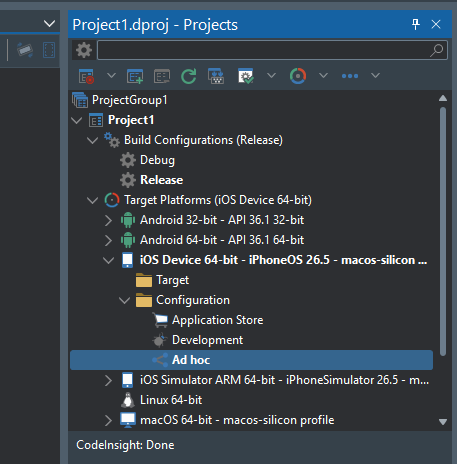
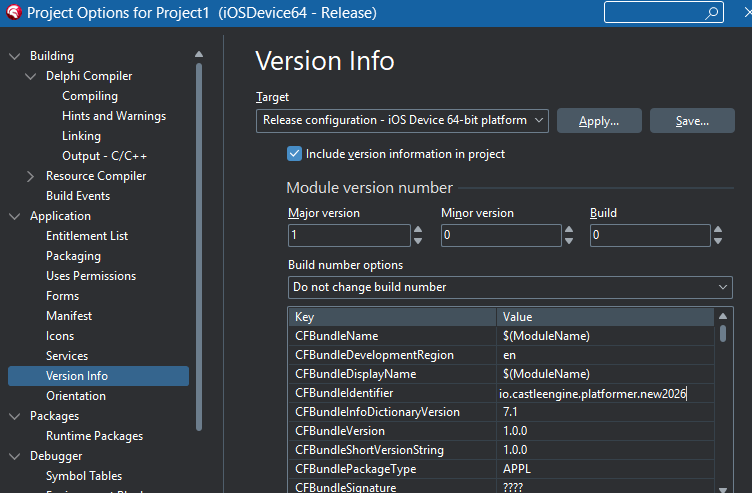
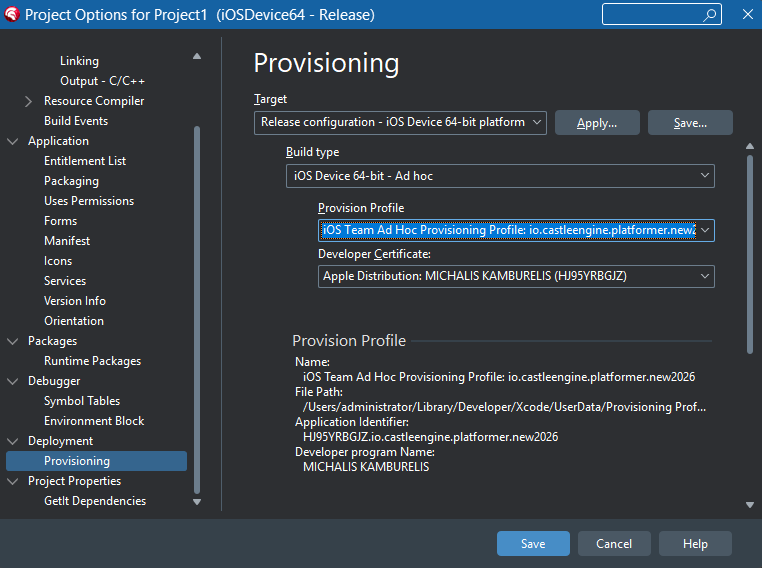
Afterwards, doing "Project → Build" followed by "Project → Deploy Project" from Delphi should work. You will have an IPA file in iOSDevice64\Release subdirectory (for blank FMX projects) or in castle-engine-output\delphi\iOSDevice64\Release subdirectory (for CGE projects). You can deploy it by
-
placing it on your HTTPS server,
-
creating manifest file like https://github.com/SignTools/ota-me/blob/master/manifest.xml,
-
and pointing to this from a webpage like
<a href="itms-services://?action=download-manifest&url=https%3A%2F%2Fexample.org%2Fmanifest.plist">My App</a> -
Open it in Safari (other www browsers on iOS will not work for this, only Safari is blessed by Apple to be capable of this) on iOS device (the one whose UDID you registered earlier with Apple, to be useful as a test device) to install the IPA on your device.
6. Build and deploy from command-line or Castle Game Engine editor (Android only for now)
You can use our command-line build tool to perform various operations on the project from the command-line. Underneath, when used with Delphi, it calls msbuild
and other tools. You can also use Castle Game Engine editor to perform these operations through a graphical interface — all operations below have corresponding entries in the menu "Run".
|
Note
|
You will possibly need to avoid the MSBuild command-line length limit by configuring Delphi to know engine paths (see installing engine in Delphi) and then adding 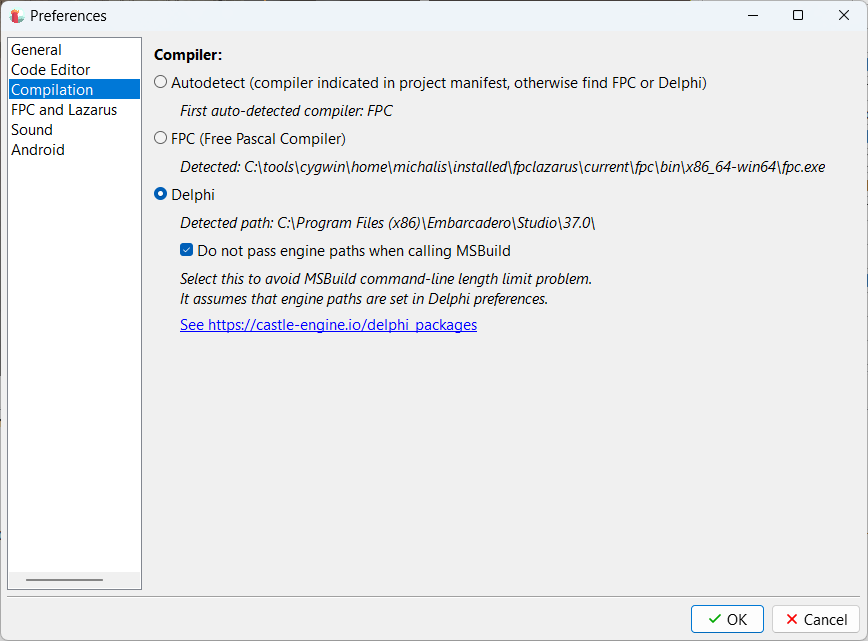 |
To build for Android (compile Pascal code into library .so), use the compile command. From command-line, run:
castle-engine compile --target=android --compiler=delphi --mode=debug --msbuild-dont-pass-engine-pathsTo further package this into APK for Android, you need to run castle-engine package …. Underneath, it is executing msbuild with /target:Deploy, as documented by Embarcadero.
|
Note
|
At least once, you still need to open the project in Delphi IDE:
|
If above is ready, you can package for Android (create APK), by running this after compilation:
castle-engine package --target=android --compiler=delphi --mode=debug --msbuild-dont-pass-engine-paths --assume-compiledAlternatively, you can just run this, to compile and package:
castle-engine package --target=android --compiler=delphi --mode=debug --msbuild-dont-pass-engine-pathsYou can also use our command-line build tool to install, run, and uninstall Android applications made with Delphi.
To make them work, our build tool must be able to find Android adb. To use the same version as your Delphi IDE, consult the Delphi Android settings: enter "Tools → Options → Deployment → SDK Manager → Android 64-bit" and look at the "adb.exe location". To make this known to our build tool or editor, follow advice from the "Capturing logs on Android" section about editor preferences or environment variable ANDROID_HOME.
Then the following commands will work and use your connected Android device.
Make sure to pass the same options each time for --compiler, --mode, --target.
# list connected Android devices (unrelated to current project)
castle-engine devices --target=android

# install the APK (make it earlier by "castle-engine package ...")
castle-engine install --target=android --compiler=delphi --mode=debug

# run it, and see logs. Break log viewer by Ctrl+C.
castle-engine run --target=android --compiler=delphi --mode=debug

# uninstall the APK from the device, if needed.
castle-engine uninstall --target=android --compiler=delphi --mode=debug
7. What are the minimal Delphi versions supported, and why?
- For Android
-
We support at least Delphi 10.4.0 with Patch 1, but heavily recommend at least Delphi 10.4.2.
- For iOS
-
We support Delphi versions >= 13.1.
Details behind these decisions, if you’re curious:
- Delphi versions earlier than 10.4.0
-
It would be very hard to support Delphi versions before 10.4.0 with Android and iOS, as these Delphi versions had a crazy compatibility-breaking change to
Stringhandling on mobile: strings were 0-based (but only on mobile!, on desktop they remained 1-based) and the Embarcadero/Idera recommended way forward was to useTStringHelper, with all operations 0-based, and maybe treat strings as immutable.This is documented now in Zero-based strings (Delphi). In the past, the page Migrating Delphi Code to Mobile from Desktop (for Delphi XE7) had a longer section "Use 0-Based Strings".
Adjusting to this would mean rewriting all
Stringhandling code in the engine to use the newTStringHelper. And it would be quite a risky task — as the globalStringroutines remained available for mobile, but they were nearly useless for cross-platform code, as they would use 1-based on desktop and 0-based on mobile. Thus causing hard-to-find bugs, as the same code would compile everywhere, but would work differently between desktop and mobile.We’re happy that Embarcadero backed off from this weird decision in later Delphi versions. See Delphi 10.4 (Sydney): Zero-based strings (Delphi). In particular it says "In general terms, string indexing is now uniform across platforms and uses 1-based index model." and "Default" is "
{$ZEROBASEDSTRINGS OFF}for Delphi desktop and mobile compilers". - Delphi 10.4.0 without Patch 1 is buggy for Android
-
Delphi 10.4.0, without any patches, comes without RTL units compiled for Android. It will cause compilation errors about missing
System.Contnrsunit. The Patch 1 fixed that, so we strictly require it. - Some Delphi versions earlier than 10.4.2 for Android kind of work…
-
While they work (as long as you have at least patch 1 installed on 10.4.0), they are really not recommended.
-
Expect random crashes at compilation and linking. You have to retry, and it will eventually build.
-
Resulting application causes warnings on modern Android devices, due to using API versions no longer recommended by Google. You need to click on scary dialogs and accept the risk — not friendly to end-users.
-
Running any application on Android device with Delphi debugger → crashes (application hangs, occasionally doing segfaults; interrupting the debugger then hangs Delphi IDE and may leave a temporary file locked until you kill debugger process
lldb-mi.exe). Only running without the debugger works. -
Only Delphi 10.4.2 shipped with significant Android improvements (bumps Android API levels, enables App Bundles, fixes above). So we recommend it as practical minimum.
-
- Earlier Delphi versions for iOS?
-
Earlier Delphi versions, even down to 10.4.2, may work to build for iOS. But they will only work with deprecated macOS / Xcode versions. So in practice we cannot support them, we don’t have resources to maintain multiple older macOS / Xcode installations.
This requirement is a result of what Apple is doing. The only way to develop for iOS is to use Xcode (Delphi also uses it underneath), and older Xcode versions (which may be required by older Delphis) are not compatible with the latest macOS.
8. Android and iOS services, managed by our build tool, are not available in Delphi
Note that Android services and iOS services, using native Java or Objective-C code, are not available when using Delphi. They are only available when using FPC.
The differences between our FPC and Delphi support for mobile platforms come down to this:
-
With Delphi, you can use all the FireMonkey goodies (like camera, location, accelerometer, gyroscope shown in the movie above; they have more, at least in-app purchases). But our Android services and iOS services are not available.
-
With FPC, on the contrary: no FireMonkey, but in exchange our Android services and iOS services rock, and allow accessing 100% of native possibilities. (It’s only a TODO that we don’t expose there camera, location etc.; OTOH, we already expose ads, notifications, in-app purchases, various analytics, Google Play Games / Apple Game Center integrations etc.)
9. Troubleshooting
9.1. Android project fails to be deployed when building with different Delphi version
-
When switching Delphi versions on the same machine, be sure to remove all the artifacts from the previous Delphi version, like
AndroidManifest.template.xml. Auto-generated files made by different Delphi version may confuse newer/older Delphi. -
Revert the Android libraries to their default state. In Delphi IDE, click on:
-
"Project Manager"
-
"Android 64-bit target" (expand it)
-
"Libraries node" (right-click on it)
-
"Revert to Default"
This advice follows release notes for Delphi 12 Athens.
-
-
Finally, remove and re-add the Android platform in Delphi IDE. Right-click on "Target Platforms" and choose "Add Platform…". Do this for all Android versions you care about (usually "Android 64-bit" and optionally "Android 32-bit" too).
9.2. Project fails to be deployed with errors about missing splash screen
You need to generate or provide artwork (splash images, launcher etc.). Go to Delphi "Project Options" and then "Application → Icons".
-
You can use "Artwork Generator" (not available in older Delphis like 10.4)
-
Or provide your own artwork.
-
The default Delphi artwork is on paths like
C:\Program Files (x86)\Embarcadero\Studio\21.0\bin\Artwork\Android\+(FM_SplashImage_*.png, FM_LauncherIcon_*.png)
The project we generate should already reference the default Delphi artwork for splash images and launcher icons, so this should not be a problem in practice.
9.3. Getting "Project … raised exception class 10" dialogs when running in Delphi debugger
Delphi project running on Android in Debug mode occasionally reports "Project … raised exception class 10". Doing "Continue" and ignoring this exception seems to be OK.
We observed this with both Delphi 12 and 13. The problem seems to have disappeared with Delphi 13.1, so a Delphi upgrade is possibly a viable solution too.
9.4. Problems building from Delphi 13 for macOS/Aarch64 (Silicon)
Remember to install the Delphi patch, and install PAServer from that patch.
From our news about it:
-
Install the patch from Embarcadero with the fix.
-
Find the new PAServer version for macOS inside the folder like
C:\Users\<username>\Documents\Embarcadero\Studio\37.0\CatalogRepository\13.1Patch-May\1.0\PAServer. It is not applied to your Delphi installation,C:\Program Files (x86)\Embarcadero\Studio\37.0\PAServerwill still contain the broken version! It’s not obvious as the patch docs merely say "This is copied to the patch download folder.". -
Install the PAServer from
C:\Users\<username>\Documents\Embarcadero\Studio\37.0\CatalogRepository\13.1Patch-May\1.0\on your macOS machine, and reimport macOS libraries ("Options → Deployment → SDK Manager").
9.5. iOS deploy errors "E0264 Unable to execute '"/usr/bin/plutil" -convert binary1 "…./Info.plist"' (Error 1)"
Solution: Remove + re-add "iOS Device" platform to the project. Right-click on "Target Platforms" and choose "Add Platform…", then "iOS Device".
9.6. Android building error "Could not create the Java Virtual Machine" (older Delphi versions)
Older Delphi versions, notably 10.4.0, may fail to build for Android with an error
[Exec Error] EXEC(1): Could not create the Java Virtual Machine.This confusing error indicates the Java installation that Delphi picked is too new. Older Delphi versions use older Android build tools, which in turn pass option -Djava.ext.dirs which new Java doesn’t support.
The solution is to force using older JDK 8 (which Delphi 10.4 installer actually installs on the system):
-
System-wide: set environment variable
JAVA_HOMEto something likeC:\Program Files\AdoptOpenJDK\jdk-8.0.242.08-hotspot -
Only in Delphi: "Tools → Options → IDE → Environment Variables". Under User overrides, click New and add:
-
Variable:
JAVA_HOME -
Value:
C:\Program Files\AdoptOpenJDK\jdk-8.0.242.08-hotspot
-
To improve this documentation just edit this page and create a pull request to cge-www repository.
